Saeed Lootah – Assignment 3

Concept
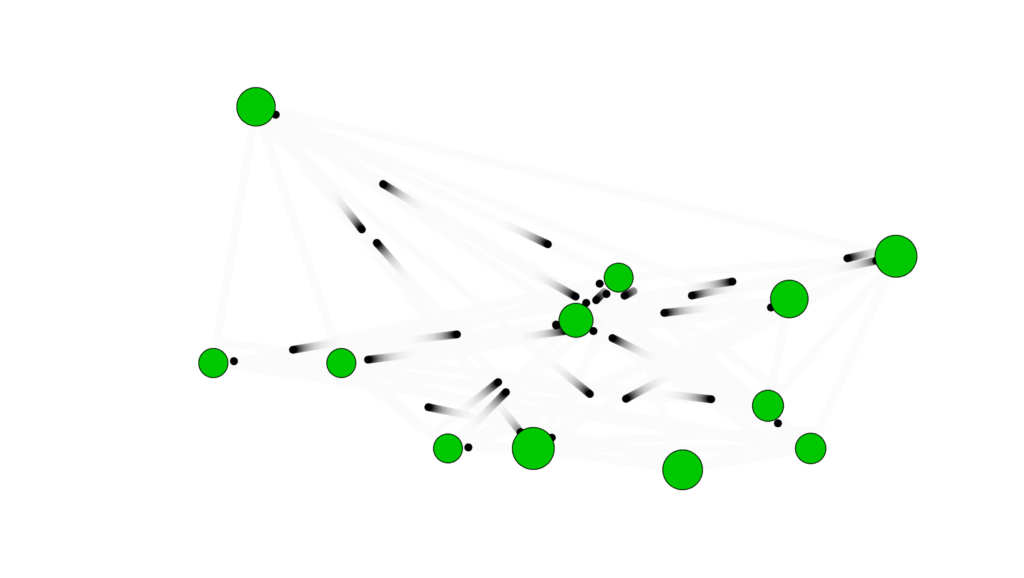
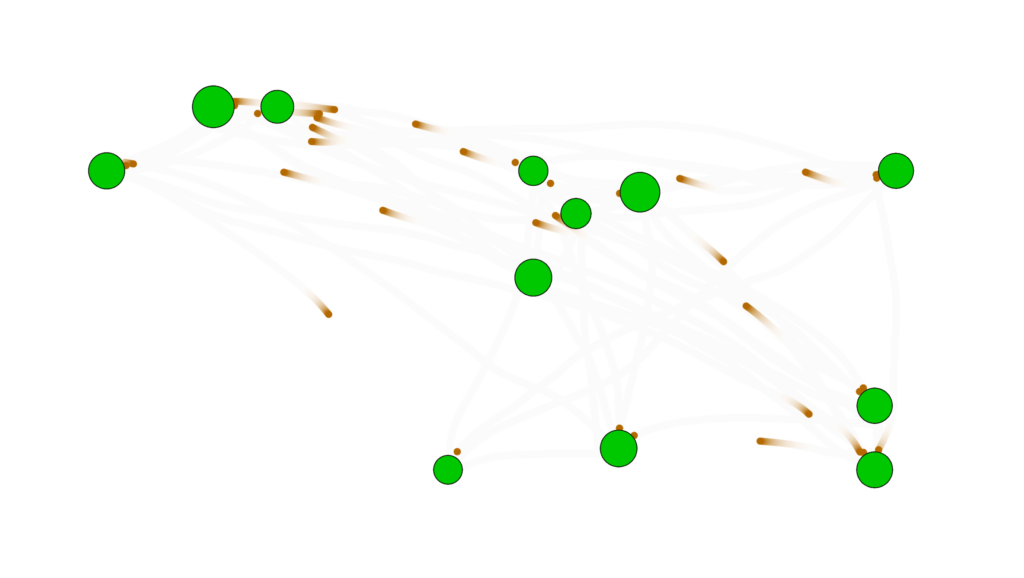
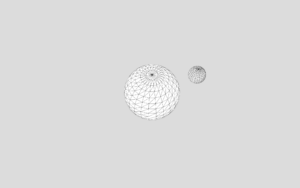
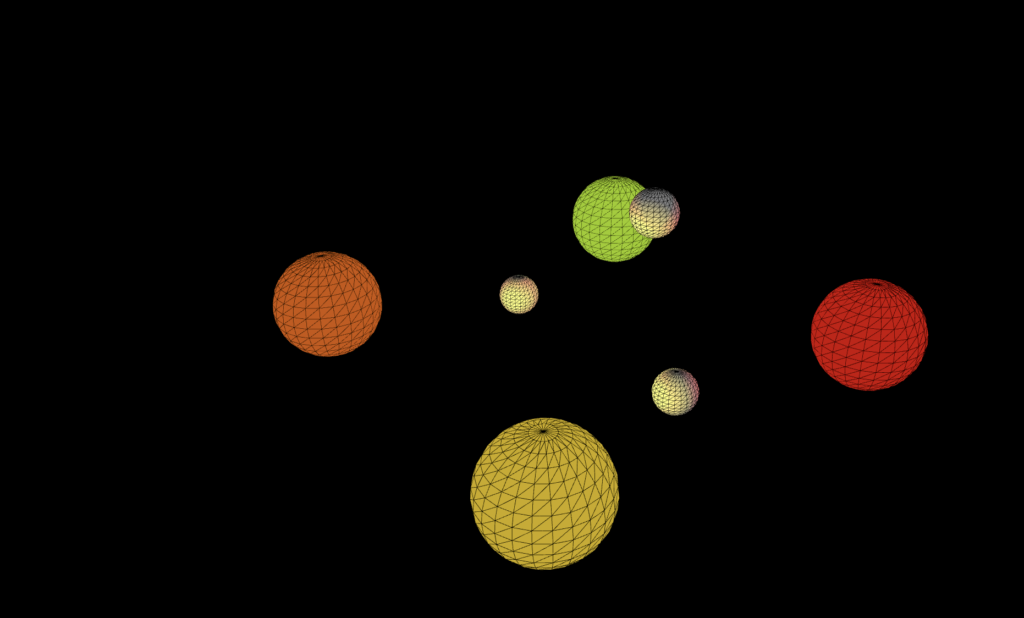
For Assignment 3 I wanted to create formations with planets and stars but in 3D. However, I wanted to make only formations that wouldn’t be possible in real life. For example planets phasing through each other. Multiple stars nearby that aren’t attracted to each other etc.

Other than in our last class I never used WEBGL before that and never made 3D shapes before. That for me I felt was going to be the biggest challenge.

I was first inspired to create a 3D sketch when I saw Mustafa’s sketch for Assignment 1
https://decodingnature.nyuadim.com/2026/01/25/mustafa-bakir-assignment-1-qu4nt0m-w4lk/

Before that I had made a sketch using matter.js and added the gravity forces myself and made a similar gravity simulation in a formation that wouldn’t be possible in real life but I was limited to 2 dimensions.

Embedded Sketch
Click, drag, and use the scroll wheel to view from all angles. Or, view the sketch from the p5 website and press F to go fullscreen (Your browser might block the full screen feature unfortunately)

Code Highlight

function keyPressed() {
 if (key === "f" || key === "F") {
   let fs = fullscreen();
   fullscreen(!fs);
   // Wait for fullscreen change before resizing canvas
   setTimeout(() => {
     resizeCanvas(windowWidth, windowHeight);
   }, 100);
 }
}

It may seem insignificant but put simply this might be the only part of my code that I could see myself using in all of my other projects.

By pressing f on your keyboard it goes into fullscreen and with the setTimeout function the canvas resizes to fit the window without resetting the simulation and only after the screen has entered fullscreen. This makes for a fairly smooth transition and I will definitely be copy pasting this into my other projects. I always like to use createCanvas(windowWidth, windowHeight) but when embedding the sketch its hard for most people to appreciate it unless I make the embedded sketch fit the width or height of the blog post.

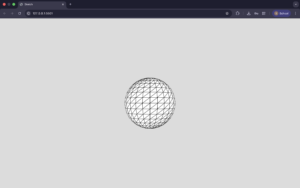
First Sphere

Added some colors as well that change with the frameCount and a sin function.

push();
 colorMode(HSB);
 s = sin(frameCount * 0.01)
 console.log(s)
 s = map(s, -1, 1, 0, 360)
 fill(s, 100, 100)
 sphere(120)
 pop();

https://p5js.org/examples/3d-geometries/

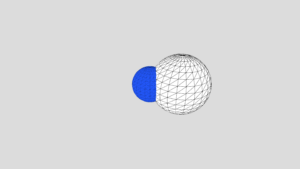
Second Sphere (two colors but no movement yet)

Made the array but no movement yet

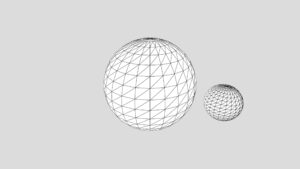
Second sphere moving + orbitControl()

orbitControl() function does all the work for me. Can click and drag the mouse to view the simulation from the 

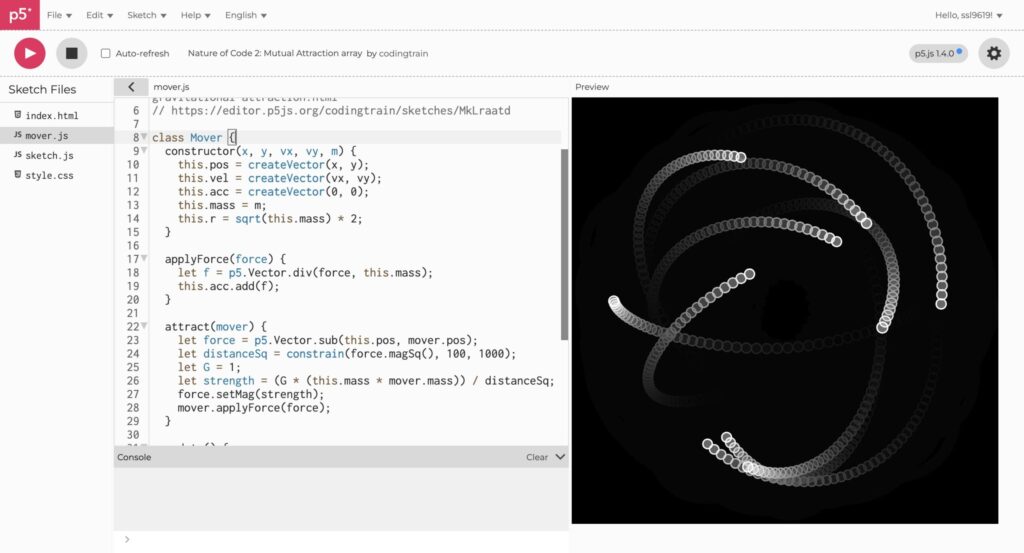
Modified the original movers class. Took the one from the references page of the nature of code and added the z dimension. (Below is the original movers page which I modified)

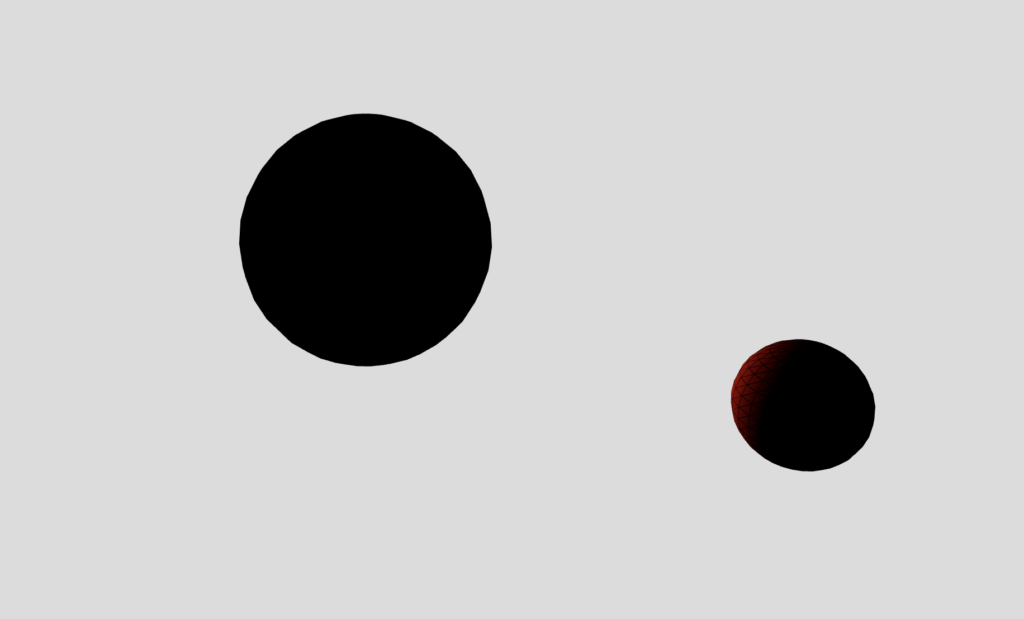
Point Light (something went wrong)

Found the point light function on the references page just added it but for some reason the star was black

pointLight(
 255, 0, 0, // color
 40, -40, 0 // position
);

Point Light (fixed)

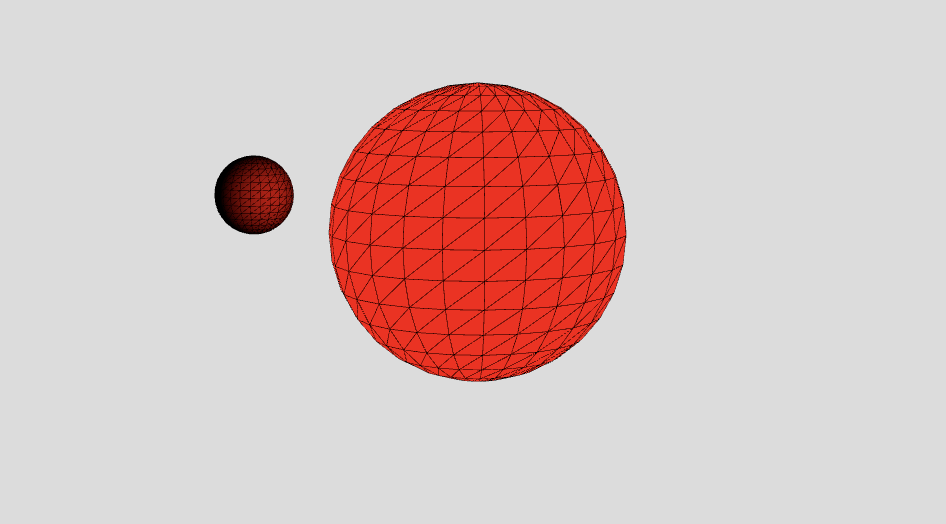
I adjusted the x,y,z position of the point light to be at the center and then added noLights() to the central star and wrote fill(255, 0, 0) so that it wouldn’t be all black and instead would be red as intended

Two Stars and central planet

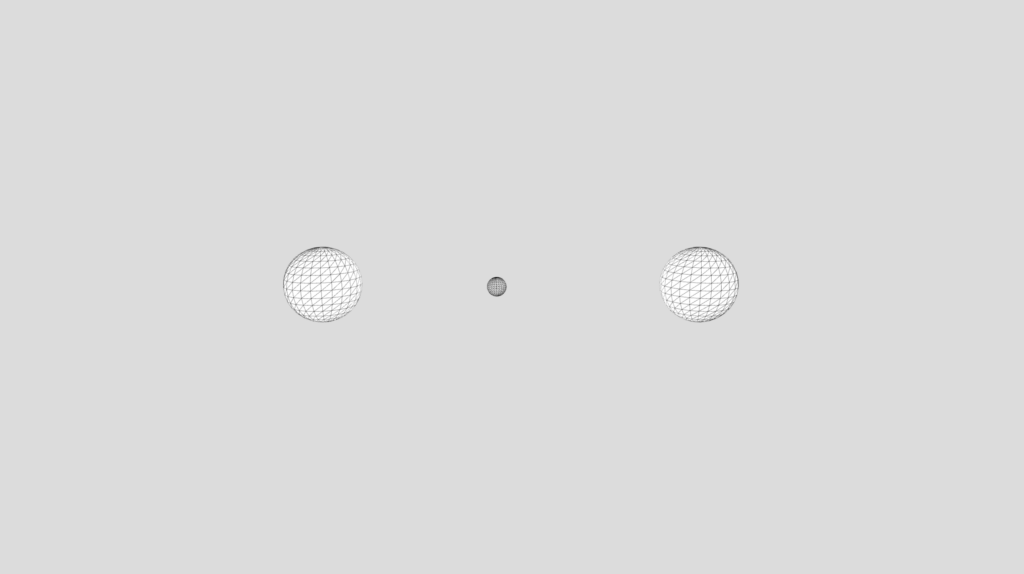
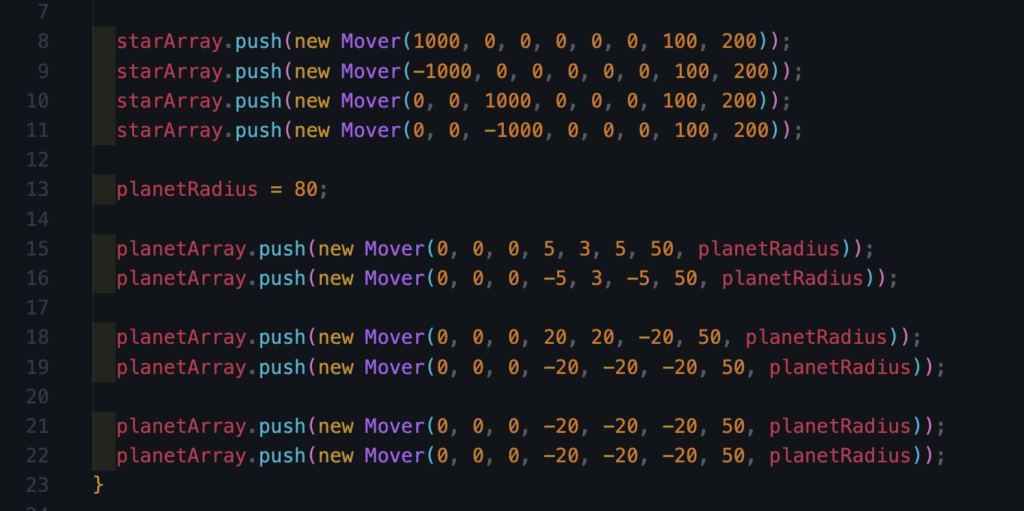
Now made two arrays one for what I called stars and one for what I’m calling planets. They are the same class however for one I don’t call upon the attract function whereas for the other I do and for that reason I made two seperate arrays.

const starArray = [];
const planetArray = [];


Then just made a lot of tweaks and got to the end product

In the setup function:

Reflection and Room for Improvement

Out of all the assignments I’ve done up to this point I’ve enjoyed this the most. Other than in our last class when I never touched WEBGL before. I also found it intimidating to make 3D until I started where I found it was far more simple than I thought it would be.

I had got very used to there being points of frustration during the process (especially debugging) but whenever I had a problem I went back to the documentation and found it easy to follow and understand.

I also loved that 0,0,0 is the center now instead of being in the top left corner of the screen.

If I choose to go back to this project I would add a couple more features:

  1. Trails behind each planet
  2. Each time you refresh you get a different arrangement (maybe one’s that I’ve created ahead of time and maybe some random ones)
  3. Being able to modify the planets and stars position ahead of time then starting or resetting the simulation

Saeed Lootah – Slime Mold

I was inspired by this which I saw a while ago when looking at the discord channel of the class. It was sent by Professor Aaron Sherwood and it was an animation of some kind but not in p5js but rather in openFrameworks.

https://cargocollective.com/sagejenson/physarum

I didn’t really understand what I was looking at or how it was worked. I chose not to look at it too closely for now so that I could come up with my own rules.

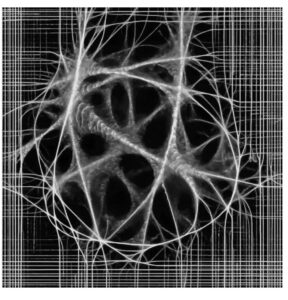
I knew it was based off of a slime mold called Physarum. It again reminded me about a slime mold being used to replicate make the Tokyo subway system and when I searched online I found this:


The slime expands in all directions then when it reaches the nutrients the path connecting it to the center gets strengthened. Slime as far as I know doesn’t have any kind of central intelligence, instead each particle or unit (whatever its called) acts independently.

I thought back to Conway’s Game of Life. Made by the mathematician John Horton Conway it is meant to resemble cellular life. It consists of a grid where each cell can be considered either dead or alive. The user can turn a cell to be either dead or alive and then start the simulation. The simulation consists of simple rules:

(Taken from Wikipedia)

  1. Any live cell with fewer than two live neighbours dies, as if by underpopulation.
  2. Any live cell with two or three live neighbours lives on to the next generation.
  3. Any live cell with more than three live neighbours dies, as if by overpopulation.
  4. Any dead cell with exactly three live neighbours becomes a live cell, as if by reproduction.

Note that each rule is not based on where in the grid a cell is but rather is only based on the surroundings of each cell. I knew for my slime mold simulation to be passable as a simulation it would need to follow a similar ruleset / a similar philosophy.

This was what I came up with:

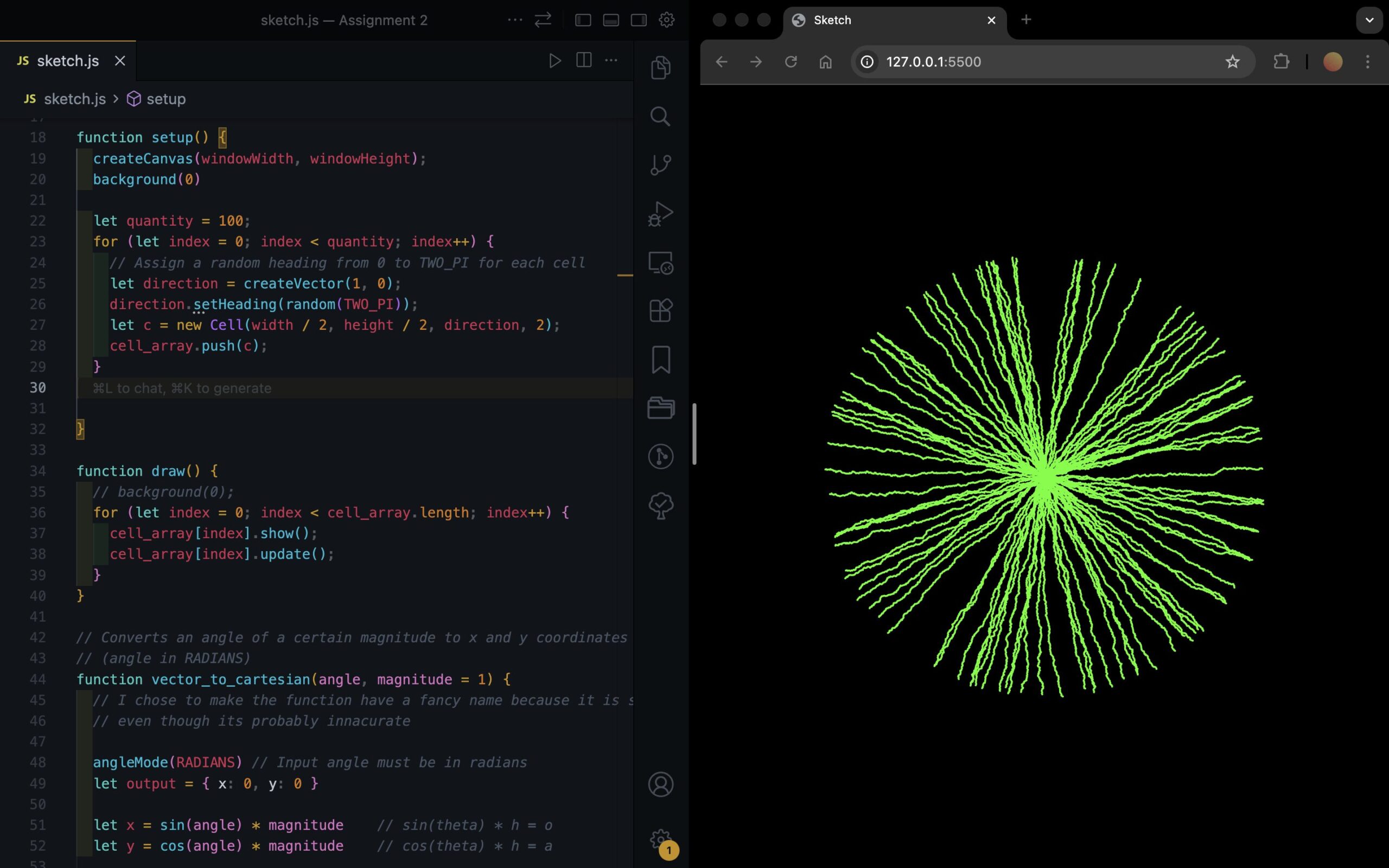
The way it works is that there are multiple what I called Cells which step outwards from the center of the canvas. Each cell’s movement is slightly randomized in that it has its intended direction say 45 degrees. But using a gaussian distribution and by setting the standard deviation to be some value say 5 degrees then adding the value to the intended direction so most values would be between 50 to 40 degrees. Here’s the corresponding function:

My Personal Highlight

vector_gaussian_heading(standard_deviation) {
    let new_vector;
    let current_heading = this.direction_vector.heading()
    let random_gaussian = randomGaussian(0, standard_deviation)
    // Constrain the value because it can in theory be any number albeit low chance
    random_gaussian = constrain(random_gaussian, -standard_deviation * 2, standard_deviation * 2)

    // Add the randomness to the heading but without updating the initial desired heading
    let random_heading = current_heading + random_gaussian;
    new_vector = createVector(this.direction_vector.x, this.direction_vector.y) // Note: I tried ... = this.direction_vector but it would update this.direction_vector as well :/
    new_vector.setHeading(random_heading)

    return new_vector;
  }

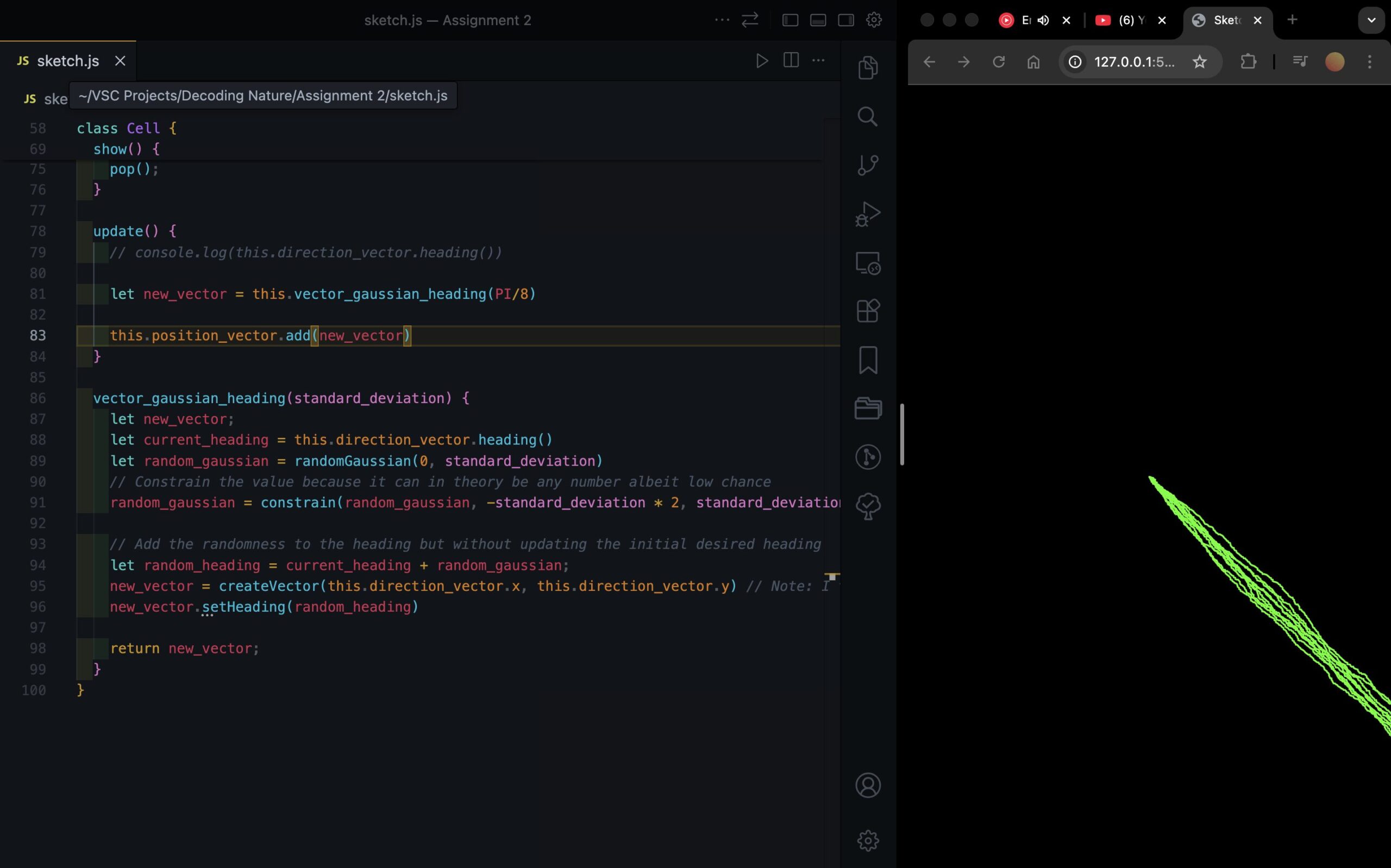
When first creating the code I got confused why at one point the cell would move in all kinds of random directions rather than sticking to a single direction and only deviating a small amount like I intended.

I originally wrote new_vector = this.direction_vector I believed that new_vector would be given the value of this.direction_vector but it would not change this.direction_vector. I was used to the equals sign meaning that what’s on the left would have the value of what’s on the right but not both.

My Progress

Randomly moving cells was not my only problem.

After implementing the slight randomness I began to add more than one Cell. In the screenshot above I believe that was around 10 of them. There’s a for loop in the setup() function within which I initialized all of the Cell classes and wanted to get the initial directions of the cells to span all 360 degrees evenly using a map function but for some reason I couldn’t get it to work.  Instead I kept it simple and used a random() function.

This is what it looked like afterwards.

Saeed Lootah – Assignment 1

The Computational Beauty of Nature
by Gary William Flake

Immediately during the author’s section on reductionism I began to think about determinism but specifically a concept called Laplace’s demon. Coined by Pierre-Simon Laplace a French philosopher in the 19th century, it refers to the idea that if you reduced the world to its most fundamental particles and had complete knowledge of all existing particles and the forces acting upon them and the forces that they can act upon other particles with a strong enough calculator you could predict anything. Free-will, and randomness would be illusions. It’s the most reductionist concept I know of.

However, as the author continued he did not begin to discuss free will and the purpose of life. Rather:

We have, then, three different ways of looking at how things work. We can take a purely reductionist approach and attempt to understand things through dissection. We also can take a wider view and attempt to understand whole collections at once
(pg. 2)

…Or we can take an intermediate view and focus attention on the interactions of agents
(pg. 2)

I appreciated the middle approach that the author wanted to take since I believe it would be more practical than Laplace’s demon for example.

As he began to discuss the examples across nature I realized that the concept’s I’m going to have to keep in mind for the rest of the course are in the three paragraphs on page 4. They are too long to paste here but to keep it as short as I can: Parallelism, Iteration, and Learning. Other words were used but I picked those because I find them the most memorable.

My Code

(Click on the sketch and click and drag your mouse)

For this assignment I picked the following from List 1 and List 2 respectively:

– Try implementing a self-avoiding walk
– Walk through RGB or HSB space (as opposed to XYZ)
What you’re looking at is a snake like shape which moves around in 3 pixel increments (step_size in the code) and it goes in whichever direction it wants to until it collides with itself at which point it stops.
At the head of the snake is a circle and there are lines for the path’s that it’s traversed previously.
In addition, the color of the lines or head of the snake changes depending on where it’s located on the canvas. I based it off of the color mode HSL which stands for Hue Saturation Lightness. Hue is an angle from 0-360 degrees (search up HSL color wheel) and the canvas is just set to be the window height and not a hard coded value. So I used the map function. I did the same for Saturation but I kept lightness at 50, if it was at 100 it would always be white, if it was at 0 it would be black. I could have used HSB and kept B at 100 and it was HSB which is why in the class Walker it’s b: 100, I forgot why I changed it to be honest.

My Personal Highlight

placement_calculation(x, y) {

    let x_remainder = x % step_size
    let y_remainder = y % step_size

    let new_coordinate = new Coordinate(x - x_remainder, y - y_remainder)

    return new_coordinate;
}

The reason I picked these few lines of code was because it was something I had come up with myself and had not done before. To ensure that all of the snakes/walkers stay on the same grid/lattice when placed I used this function. It takes the modulus of x, and y, with step_size and then for the new coordinate that’s being outputed its the x/y value given minus the remainder.

This ensures that the x,y coordinate that the snake is placed on is always a multiple of the step_size. I’m not sure if that made sense but it was the most efficient method I could think of to keep everything on the same grid.

Reflection

I’m happy with how the sketch looks and I think the code is somewhat easy to read. Going into this project I’ve been trying to make more readable code using variable names that explain what the variable is rather than an abbreviation and relying on comments. In the event that I did use an abbreviation I wrote a comment above (in the is_surrounded function).

With that being said there are some things I would like to change. Most importantly rather than relying purely on random chance I would like to implement some kind of formula or iterative design that can make the snake/walker last longer. And, a function to ensure that walkers don’t cross the paths of other walkers.