Saeed Lootah – Assignment 3

Concept
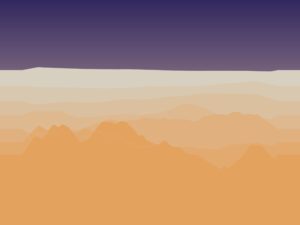
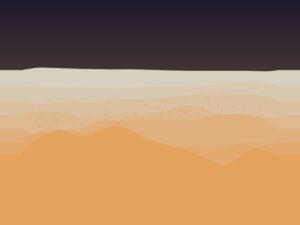
For Assignment 3 I wanted to create formations with planets and stars but in 3D. However, I wanted to make only formations that wouldn’t be possible in real life. For example planets phasing through each other. Multiple stars nearby that aren’t attracted to each other etc.

Other than in our last class I never used WEBGL before that and never made 3D shapes before. That for me I felt was going to be the biggest challenge.

I was first inspired to create a 3D sketch when I saw Mustafa’s sketch for Assignment 1
https://decodingnature.nyuadim.com/2026/01/25/mustafa-bakir-assignment-1-qu4nt0m-w4lk/

Before that I had made a sketch using matter.js and added the gravity forces myself and made a similar gravity simulation in a formation that wouldn’t be possible in real life but I was limited to 2 dimensions.

Embedded Sketch
Click, drag, and use the scroll wheel to view from all angles. Or, view the sketch from the p5 website and press F to go fullscreen (Your browser might block the full screen feature unfortunately)

Code Highlight

function keyPressed() {
 if (key === "f" || key === "F") {
   let fs = fullscreen();
   fullscreen(!fs);
   // Wait for fullscreen change before resizing canvas
   setTimeout(() => {
     resizeCanvas(windowWidth, windowHeight);
   }, 100);
 }
}

It may seem insignificant but put simply this might be the only part of my code that I could see myself using in all of my other projects.

By pressing f on your keyboard it goes into fullscreen and with the setTimeout function the canvas resizes to fit the window without resetting the simulation and only after the screen has entered fullscreen. This makes for a fairly smooth transition and I will definitely be copy pasting this into my other projects. I always like to use createCanvas(windowWidth, windowHeight) but when embedding the sketch its hard for most people to appreciate it unless I make the embedded sketch fit the width or height of the blog post.

First Sphere

Added some colors as well that change with the frameCount and a sin function.

push();
 colorMode(HSB);
 s = sin(frameCount * 0.01)
 console.log(s)
 s = map(s, -1, 1, 0, 360)
 fill(s, 100, 100)
 sphere(120)
 pop();

https://p5js.org/examples/3d-geometries/

Second Sphere (two colors but no movement yet)

Made the array but no movement yet

Second sphere moving + orbitControl()

orbitControl() function does all the work for me. Can click and drag the mouse to view the simulation from the 

Modified the original movers class. Took the one from the references page of the nature of code and added the z dimension. (Below is the original movers page which I modified)

Point Light (something went wrong)

Found the point light function on the references page just added it but for some reason the star was black

pointLight(
 255, 0, 0, // color
 40, -40, 0 // position
);

Point Light (fixed)

I adjusted the x,y,z position of the point light to be at the center and then added noLights() to the central star and wrote fill(255, 0, 0) so that it wouldn’t be all black and instead would be red as intended

Two Stars and central planet

Now made two arrays one for what I called stars and one for what I’m calling planets. They are the same class however for one I don’t call upon the attract function whereas for the other I do and for that reason I made two seperate arrays.

const starArray = [];
const planetArray = [];


Then just made a lot of tweaks and got to the end product

In the setup function:

Reflection and Room for Improvement

Out of all the assignments I’ve done up to this point I’ve enjoyed this the most. Other than in our last class when I never touched WEBGL before. I also found it intimidating to make 3D until I started where I found it was far more simple than I thought it would be.

I had got very used to there being points of frustration during the process (especially debugging) but whenever I had a problem I went back to the documentation and found it easy to follow and understand.

I also loved that 0,0,0 is the center now instead of being in the top left corner of the screen.

If I choose to go back to this project I would add a couple more features:

  1. Trails behind each planet
  2. Each time you refresh you get a different arrangement (maybe one’s that I’ve created ahead of time and maybe some random ones)
  3. Being able to modify the planets and stars position ahead of time then starting or resetting the simulation

Salem Al Shamsi – Assignment 3

Al-Muraud (The Chase)

A simulation of UAE falconry using flocking behavior and physics forces

Embedded Sketch

How to Interact

  1. Move your mouse : The falcon follows and birds run away
  2. Click : Creates a dive attack with spinning chaos
  3. Press +/- : Add or remove birds
  4. Press R : Reset everything
  5. Press S : See the invisible force circles (debug mode)

Concept & Inspiration

I wanted to create something connected to UAE culture, so I chose falconry the traditional hunting practice where falcons chase desert birds called Houbara Bustards. The idea is simple: you control a falcon (the mouse), and it hunts a flock of birds. The birds try to stick together for safety, but when the falcon gets close, they scatter. There are also two green “oasis” spots where birds naturally want to gather. When you click, the falcon does a dive attack that creates a spinning vortex.

My inspiration came from:

Code Organization & Variable Names

I organized my code into two main classes:

1- Houbara Class (The Prey)

Variables:

  • perceptionRadius – How far a bird can “see” neighbors
  • panicLevel – Maps speed to fear (0 = calm, 1 = terrified)
  • maxForce – How sharply a bird can turn

Methods that organize behavior:

  • cohesion() – Pull toward flock center
  • separation() – Avoid crashing into neighbors
  • flee() – Escape from predator
  • seekOasis() – Drift toward safe zones
  • turbulence() – Get caught in chaos vortex
  • flock() – Combines all forces with priorities

2-Falcon Class (The Predator)

Variables:

  • wingAngle – For flapping animation
  • sizeMultiplier – Grows when moving fast

Methods:

  • follow() – Smoothly chase mouse
  • show() – Draw with animated wings

Global Variables

Clear names that explain themselves:

  • diveActive – Is turbulence happening right now?
  • divePos – Where did the user click?
  • diveDuration – Countdown timer for chaos
  • showDebug – Toggle for seeing perception circles

Code Highlights

Here are three pieces of code I’m particularly proud of:

1. Panic Escalation System
// FLEE: Escape from predator
// Force strength increases as falcon gets closer (gradient of fear)
flee(target) {
  let perceptionRadius = 150; // How far bird can sense danger
  let desired = p5.Vector.sub(this.pos, target); // Point AWAY from falcon
  let d = desired.mag(); // Distance to falcon
  
  // Only flee if falcon is within perception range
  if (d < perceptionRadius) {
    desired.setMag(this.maxSpeed); // Set to maximum speed (fleeing urgently)
    let steer = p5.Vector.sub(desired, this.vel); // Steering = desired - current
    steer.limit(this.maxForce); // Don't turn impossibly sharp
    
    // KEY FEATURE: Map distance to force strength
    // Close (0px) = 2x force, Far (150px) = 0.5x force
    let strength = map(d, 0, perceptionRadius, 2, 0.5);
    steer.mult(strength);
    
    return steer;
  }
  return createVector(0, 0); // No force if falcon is far
}

The map() function creates a gradient of fear. At 0 distance = 2x force. At 150 pixels = 0.5x force. This makes the behavior feel natural instead of just on/off. Birds don’t just “run”, they panic MORE as danger gets closer.

2. Creating the Spinning Vortex
// Create spinning vortex force
let toCenter = p5.Vector.sub(diveCenter, this.pos);
let vortex = toCenter.copy();
vortex.rotate(HALF_PI); // KEY: Rotate 90° transforms "pull" into "orbit"

// Add random chaos
let chaos = p5.Vector.random2D();
chaos.mult(random(2, 5));

// Combine structured spin + random chaos
let turbulence = p5.Vector.add(vortex, chaos);

The key insight is that rotating a force 90 degrees turns “pull toward center” into “orbit around center”. Then adding random chaos makes it unpredictable but still structured. This one line vortex.rotate(HALF_PI) is the difference between an explosion and a whirlwind.

3. Weighted Separation Force
let diff = p5.Vector.sub(this.pos, other.pos); // Point away from neighbor
diff.div(d); // IMPORTANT: Closer neighbors create stronger push

Dividing by distance means: bird at 10px pushes 10x harder than bird at 100px. This single line creates realistic personal space. It’s elegant math that produces natural behavior.

Development Milestones & Challenges

I built this in 6 steps, adding one feature at a time:

Milestone 1: Basic Birds Moving Around

I started by creating a Houbara class with basic physics: position, velocity, and acceleration. At this point, birds just drifted randomly across the screen.

Challenge: Getting the triangle shape to point in the direction they’re moving using rotate(this.vel.heading()).

At first I tried rotating without translate() first, which made all the birds rotate around the canvas origin (0,0) instead of their own centers. Solution: Use push(), then translate() to the bird’s position, then rotate(), then draw the shape, then pop(). The order matters!


Milestone 2: Flocking Behavior

Added two forces based on Craig Reynolds’ Boids algorithm:

  • Cohesion – Birds want to move toward the center of the flock
  • Separation – Birds don’t want to crash into each other

Challenge: At first, all the birds just merged into one blob. They were stuck together in a tight cluster.

Solution: I made the separation force stronger (1.5x weight) and gave it a smaller radius (50px vs 100px for cohesion). This creates the “nervous flock” behavior they want to stay together but maintain personal space.


Milestone 3: Falcon Chases Birds

Made the mouse act like a predator using Reynolds’ Steering Behaviors. Birds flee when the falcon gets within 150 pixels.

Challenge: The flee force was either too weak (birds didn’t care about falcon) or too strong (birds shot off screen instantly).

Solution: I used map() to scale flee force from 0.5x to 2x based on distance. This creates realistic panic where birds freak out more when danger is right on top of them. It’s a gradient instead of binary.


Milestone 4: Dive Attack Turbulence

When you click, it creates chaos at that spot. The turbulence combines two things:

  • A vortex that spins birds in a circle (by rotating the force vector 90 degrees)
  • Random chaos pushing birds in unpredictable directions

Challenge: I initially just pushed birds away from the click point, which looked like an explosion. Boring.

Solution: The breakthrough was understanding that vortex.rotate(HALF_PI) turns a “push away” force into circular motion. This creates the spinning whirlwind effect.


Milestone 5: Making It Look Good

Added visual improvements:

  • Created an actual Falcon class with flapping wings
  • Added the two green oasis spots
  • Birds leave motion trails
  • Birds change color based on speed (tan → reddish)
  • Sand particles scatter during dive

Challenge: I accidentally put the seekOasis() function in the Falcon class instead of the Houbara class. Got error: TypeError: this.seekOasis is not a function

Solution: Read the error message carefully! It told me exactly what was wrong. Moved the method to the correct class (birds seek oases, not falcons).


Milestone 6: Polish & Controls

Final touches:

  • Designed the UI with desert colors (browns and golds)
  • Added keyboard controls (R, +, -, S)
  • Made the oases pulse using sin() animation
  • Changed edge wrapping to bouncing physics
  • Made the falcon grow bigger when moving fast

Challenge: The perception circle was appearing in the wrong spot because it was inside the falcon’s rotation transformation.

Solution: I moved the circle drawing from inside Falcon.show() to the main draw() function, before any transformations are applied. Now it uses absolute world coordinates instead of the falcon’s rotated local coordinates.

The final polished version with all features is available in the embedded sketch above.

How the Forces Work Together

Each bird calculates 5 forces every frame and combines them:

  1. cohesionForce.mult(1.0); // Want to stay with group
  2. separationForce.mult(1.5); // Don’t crash into neighbors
  3. fleeForce.mult(2.5); // RUN FROM DANGER (strongest)
  4. oasisForce.mult(0.8); // Drift toward safety
  5. turbulenceForce.mult(2.0); // Get caught in chaos

The weights create a priority system:

Survival > Safety > Chaos > Togetherness > Comfort

This matches how real animals behave: immediate threats override long-term goals.

Reflection

What I Learned

Simple rules create complex patterns. Each bird only knows about its nearby neighbors, yet the whole flock moves as one. This is called “emergent behavior.”

Small numbers matter.

Changing flee force from 2.0 to 2.5 completely changed how scared birds act. The difference between good and great simulation is often just finding the right numbers.

Building step-by-step works.

Adding one feature at a time made debugging way easier than trying to do everything at once.

Theme matters.

Framing this as falconry instead of “particles following forces” made it way more interesting.

What Worked Well

  • Force priority system feels natural (survival > safety > togetherness)
  • Visual feedback makes invisible forces visible (color changes, trails, size)
  • Keyboard controls make it interactive
  • Vortex turbulence looks really cool

What I’d Improve

  • Plan UI design earlier instead of adding it last
  • Use systematic testing for force weights instead of random tweaking
  • Add sounds (wing flaps, bird chirps, dive whoosh)
  • Implement energy system (birds get tired, need to rest)
  • Create visual dive animation (falcon swoops before turbulence)

Assignment 3: Yash

Project Title: Window Pane Serenity

Concept

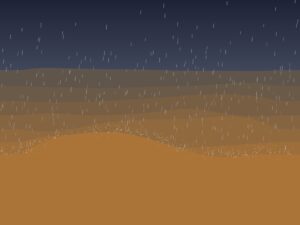
The concept for this project is grounded in the feeling of solitude and comfort sitting beside a window wall in a dimly lit room, watching a storm pass over a city at night. I wanted to capture the specific physical behavior of water on glass: how it sticks, slides, and merges.

Connecting this to the assignment task, I treated the raindrops as the primary movers. Instead of standard “bouncing balls,” these bodies obey a specific set of forces:

  • Gravity: The constant downward acceleration.

  • Turbulence: I utilized Perlin noise to simulate wind, pushing the drops slightly sideways to create organic, non-linear paths.

  • Attraction/Cohesion: The “attractor” element is implemented through the surface tension of water. When drops touch, they attract and merge into larger bodies.

  • Friction: This acts as a resisting force; drops below a certain mass (MIN_MASS_TO_SLIDE) are held in place by friction against the glass until they merge with another drop and become heavy enough to slide.

Visual Demo

Project Walkthrough:

Interactive Sketch:

Code Highlight

I am particularly proud of the drop merging logic. Implementing this was tricky because it required checking every drop against every other drop without crashing the performance. I also had to calculate the new size based on the combined area of the two circles to maintain realistic conservation of volume.

Additionally, managing the array was difficult here; I had to iterate backwards through the array to safely remove the “absorbed” drop without messing up the loop index.

// PHYSICS EFFECT 2: Drops merge when they touch each other
    // We iterate backwards to safely splice items out of the array
    for (let j = drops.length - 1; j >= 0; j--) {
      if (i !== j) { // Don't check a drop against itself
        let other = drops[j];
        let dist = p5.Vector.dist(d.pos, other.pos);
        
        // If drops are overlapping
        if (dist < d.r + other.r) {
          // Combine their areas (preserve total water volume)
          // Area = PI * r^2
          let newArea = (PI * d.r * d.r) + (PI * other.r * other.r);
          d.r = sqrt(newArea / PI); // Calculate new radius
          d.vel.y *= 0.9; // Slow down slightly due to mass increase/friction
          
          // Remove the absorbed drop from the simulation
          drops.splice(j, 1);
          if (j < i) i--; // Adjust index if we removed an item before the current one
        }
      }
    }

Milestones & Challenges

1. Layering the Visuals One of the biggest challenges was creating the “wet trail” effect behind the drops. Initially, I just drew semi-transparent rectangles over the background to fade the trails. However, this darkened the entire window, obscuring the moon and city layer I had drawn.

  • Solution: I implemented a createGraphics layer specifically for the trails. Instead of painting “black” to fade them, I used the erase() function. This allowed me to subtract the trails’ opacity over time, revealing the crisp city background underneath without darkening it.

2. Simulation Physics Getting the “sticky” feel of the rain was a milestone. At first, all drops fell at the same speed. Adding the MIN_MASS_TO_SLIDE logic changed the feel entirely—it allowed small drops to accumulate on the screen (creating a texture) until a larger drop swept them up, which felt much more realistic.

3. Atmospheric Depth I struggled to make the scene feel like a room rather than just a flat drawing. Adding the drawVignette() function with a loop of fading strokes helped create a sense of depth and focus, mimicking the way a human eye or camera lens focuses on the light source.

Reflection & Future Work

I am happy with how the mood translates. The combination of the dark interior colors and the bright drops creates a strong contrast. The physics successfully meet the assignment requirements by using turbulence and attraction to generate a constantly evolving design.

For future improvements:

  • Interaction: I would like to add a mouse interaction where the user can “wipe” the fog off the glass with their cursor.

  • Sound: Adding a rain loop and distant thunder would make the experience fully immersive.

  • Lighting: Currently, the drops are lit statically. It would be interesting if the drops refracted the light from the moon or the city below based on their position.

Buernortey Buer – Assignment 3

Concept and Inspiration

This project simulates particles moving through a maze using forces rather than bouncing off walls. Each particle is pulled toward a target point but pushed away by invisible walls shaped like rectangles. A gentle random force based on Perlin noise makes their movement look natural and smooth. I was inspired by sci-fi movies like Tron and by art that uses flowing patterns. The goal was to create flowing, energy-like paths that happen naturally from how the forces work together, not from fixed paths.

Code Organization and Naming

The code is organized into clear components: a Particle class manages position, velocity, acceleration, and trail rendering; a Wall class defines rectangular obstacles; and dedicated functions handle forces (applyGoalAttraction(), applyWallRepulsion(), and applyTurbulence()). This separation keeps the program modular and readable. Variable and function names are descriptive — like goalStrength, wallRepelStrength, and applyWallRepulsion — to make the code’s purpose immediately clear without confusion.

Code Highlights and Comments

I’m particularly proud of the wall repulsion system, which calculates the closest point on each wall rectangle to the particle and applies a smoothly scaled repulsion force. This method avoids abrupt collisions, allowing particles to gently slide away from walls rather than bouncing harshly. As a result, the particle trails form elegant, curved paths that reveal the flow of forces shaping their motion. The code is carefully commented, especially in the tricky parts like the closest-point calculation and force scaling, to clearly explain the math and logic behind this smooth, natural movement.

// push particles away from rectangles
function applyWallRepulsion(p) {
  for (let w of walls) {

    // find closest point on wall rectangle
    let closestX = constrain(p.pos.x, w.x, w.x + w.w);
    let closestY = constrain(p.pos.y, w.y, w.y + w.h);

    let closestPoint = createVector(closestX, closestY);

    // vector from wall to particle
    let diff = p5.Vector.sub(p.pos, closestPoint);
    let d = diff.mag();

    // only repel if within influence distance
    if (d < 40 && d > 0) {
      diff.normalize();

      // closer = stronger push
      let strength = wallRepelStrength / d;
      diff.mult(strength);

      p.applyForce(diff);
    }
  }
}


Embedded Sketch

Milestones and Challenges

I started by making particles move toward a goal and then added trails so you could see their paths. Adding turbulence made the movement look more natural and interesting. Creating walls and figuring out how to push particles away smoothly was hard but important for realistic motion. I had to try different force strengths because if the push was too strong, particles got stuck, and if it was too weak, they went through walls. Using a semi-transparent background helped the trails build up visually, and limiting particle speed kept the motion steady.

Reflection and Future Work

This project helped me better understand how multiple forces interact to create complex, emergent movement. Compared to the simpler exercises we did in class, this system feels more full and alive because the forces come from the environment, not just between particles. It was exciting to see invisible forces made visible through the trails the particles leave. In the future, I want to add things like walls you can change with the mouse, more goals for particles to follow, moving obstacles, colors that change based on force, and sliders to adjust settings while the program runs.

Assignment 3

Concept

For this assignment, I chose to create a particle system where movers orbit multiple attractors while being affected by three competing forces: gravitational attraction, wind turbulence, and mutual repulsion. I was inspired by how celestial bodies orbit in space but also how flocking birds maintain spacing while moving together. The challenge was to balance these three forces so they create beautiful, flowing patterns rather than chaotic scattering or rigid clustering. Each mover has slightly different mass, giving them unique orbital behaviors – some get pulled strongly into tight orbits while others drift lazily at the edges. The combination of ordered attraction and chaotic turbulence creates movement that feels organic and alive, like watching a cosmic dance that’s constantly evolving but never repeating.

Sketch

Code Highlight

In my implementation, a section of my code that I am proud of is below:

//Wind/turbulence using Perlin noise
 applyWind(time) {
   //perlin noise to create flowing, organic wind
   let noiseVal = noise(this.pos.x * 0.01, this.pos.y * 0.01, time * 0.0001);
   let angle = noiseVal * TWO_PI * 2;
   let wind = createVector(cos(angle), sin(angle));
   wind.mult(WIND_STRENGTH);
   this.applyForce(wind);
 }

This creates the organic turbulence that pushes movers around. Instead of using random() which would make particles jitter randomly, I used 3D Perlin noise (x, y, and time) which gives smooth, flowing forces. By sampling the noise field at the particle’s position and the current time, nearby particles experience similar wind direction, creating swirling currents rather than chaos. The angle conversion means the noise controls which direction the wind blows, creating those beautiful flowing patterns you see in the trails. I’m also proud of this snippet that prevents particle clustering:

//repulsion from another mover
 repel(other) {
   let force = p5.Vector.sub(this.pos, other.pos);
   let distance = force.mag();
   
   //repel if close enough
   if (distance < REPULSION_DISTANCE && distance > 0) {
     let strength = (this.mass * other.mass) / (distance * distance);
     force.setMag(strength);
     this.applyForce(force);
   }
 }

This uses the same inverse-square physics as attraction, but only activates when movers get close. It’s what keeps the particles from all collapsing into a single clump and creates those satisfying spacing patterns in the orbits. It’s a small detail but makes a huge difference in creating visually interesting formations.

Challenges
Force Accumulation Bug
Early in development, I noticed that movers were only responding to one force at a time, even though I was calling applyForce() multiple times per frame. After debugging, I realized the class example’s applyForce() method was replacing acceleration instead of adding to it:

Version from class example:

applyForce(force) {
   this.acc = force.div(this.mass);}

My updated version:

//accumulates forces
applyForce(force) {
  let f = force.copy();
  f.div(this.mass);
  this.acc.add(f); //add to acceleration
}

Reflections and Future Improvements
Through this assignment, I discovered that emergent complexity comes from simple rules interacting. No single force creates the beautiful patterns – it’s the tension between attraction (pulling together), repulsion (pushing apart), and turbulence (stirring things up) that generates the endless variety. My biggest challenge was finding the right balance between these forces. Too many attractions and everything collapsed into the attractors. Too much repulsion and particles scattered. Too much wind and chaos took over. The sweet spot where all three forces balanced created the most interesting patterns. My biggest takeaway is that personality comes from variation. Giving each mover a random mass (between 0.5 and 2) meant they all respond differently to the same forces – heavy particles orbit tightly while light ones drift widely. This variation is what makes the system feel alive rather than mechanical. Below are some ideas I would implement in the future for improvement of what I have currently:

    1. Ability to drag attractors to new positions and see how the system responds in real-time.
    2. Make particles bounce off each other with momentum conservation.
    3. Slow motion or fast forward to study patterns at different speeds.
    4. Different colored particles with different masses or charge (attract some, repel others).

With my implementation so far, some features I believe work very well include the Perlin noise wind creating smooth organic turbulence, the speed-based coloring that immediately shows which particles are moving fast, the repulsion preventing unrealistic clustering, and most importantly, the combination of three different forces creating complex emergent behaviors from simple physical rules. The system creates genuinely unpredictable patterns while maintaining a cohesive aesthetic – each session is unique but always visually interesting.

Assignment 3

Concept

In class, we mostly looked at one object following one attractor. For this assignment, I wanted to see what happens when multiple attractors and repulsors fight for control over thousands of tiny particles.

  • The Magnets: I placed 3 invisible “charges” on the screen. Some pull (Attractors) and some push (Repulsors).

  • The “Weavers”: These are hundreds of tiny particles that spawn, trace the invisible lines of force for a short time, and then vanish.

  • The Turbulence: To stop the pattern from looking too perfect and mathematical, I added wind using Perlin Noise. This adds a slight wobble to the particles, making the final drawing look like organic flow—like muscle fibersl

  • Interaction: Clicking the mouse adds a massive “Disruptor” force (Repulsion) that pushes the flow away from your cursor, carving a hole in the pattern.

Code Highlight

I am particularly proud of the applyBehaviors function. This is the engine that drives the movement. It calculates the “Net Force” for every particle by summing up three different influences: the structural pull of the magnets using vector subtraction, the organic flow of the Perlin noise, and the interactive push of the mouse.

applyBehaviors(magnets) {
    let netForce = createVector(0, 0);

    // A. FORCES FROM MAGNETS
    for (let i = 0; i < magnets.length; i++) {
      let m = magnets[i];
      let force = p5.Vector.sub(m.pos, this.pos);
      let dist = force.mag();
      
      // Avoid extreme forces when very close
      dist = constrain(dist, 10, 100); 
      
      // Physics: Force = Strength / Distance
      force.setMag(m.strength / dist);
      netForce.add(force);
    }

    // B. MOUSE REPULSION (Interaction)
    if (mouseIsPressed) {
      let mousePos = createVector(mouseX, mouseY);
      let mouseForce = p5.Vector.sub(this.pos, mousePos); // Points AWAY
      let dist = mouseForce.mag();
      
      if (dist < 150) {
         mouseForce.setMag(5); // Strong push
         netForce.add(mouseForce);
      }
    }

    // C. TURBULENCE (Perlin Noise)
    // Makes the lines look like wood grain or flowing water
    let n = noise(this.pos.x * 0.005, this.pos.y * 0.005);
    let angle = map(n, 0, 1, 0, TWO_PI);
    let wind = p5.Vector.fromAngle(angle);
    wind.mult(0.5); // Add just a little bit of organic chaos
    netForce.add(wind);

    this.applyForce(netForce);
  }
Milestones & Challenges

I first started experimenting with how to make a magnetic field in p5, so I made a sketch with a bunch of rods that follow the mouse which acts as a magnet. They rods created a nice magnetic field pattern which inspired the final piece.

I learned how to do this from this sketch.

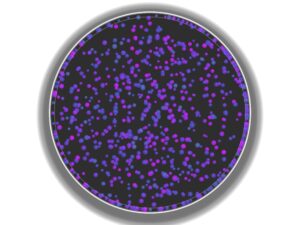
After that, I began playing around with different colors and ended up deciding on this neon purple one with a dark background. Here, the mouse was the magnet, but I noticed that after some time following the mouse, the particles would all be on top of each other and show as one. Because of this, I decided to put multiple attractors, which made no two particles follow the same path.

Reflection & Future Work

This project felt like a significant step up because I was simulating a system of forces rather than just a single interaction. The result looks less like a computer simulation and more like a generative painting.

Future Ideas:

  1. Color Mapping: Map the color of the line to the stress (force magnitude) at that point. High-stress areas (near magnets) could be red; low-stress areas could be blue.

  2. Moving Magnets: Have the magnets slowly drift around the screen using sine waves, causing the pattern to shift and morph over time.

Assignment 3

Concept:

Inspired by the painterly textures of schools of fish avoiding predators like sharks and the concept of “Mutual Attraction” from the Nature of Code, I developed a sketch imitating what you would see if you observed predators and prey in the ocean. My goal was to move away from literal physics simulations and create something that looks – well – cool. The sketch features a shimmering school of prey (teal brushstrokes) and a few large predators (dark purple shadows). The entire system is governed by mutual influence, where every body pulls on every other body, creating a complex, swirling choreography.

In this ecosystem, the movement is defined by a specific hierarchy of forces. The Prey are mutually attracted to one another to create a “schooling” effect, while Predators are naturally drawn toward the prey. To simulate life-like behavior, I flipped the gravitational pull into a strong repulsion whenever a predator gets too close to a prey object, causing the school to scatter in fear. Finally, I added territorial repulsion between the predators themselves; this ensures they don’t clump into a single mass and instead spread out to hunt across the infinite wrapping canvas (more on this later).

Sketch:

Highlight:

I’m particularly proud of how I used Mass to influence the Visual Design. Instead of just drawing a circle, the mass of the object dictates the strokeWeight of the brushstroke, and its velocity dictates the direction and length of the “paint” line:

show() {
  push();
  // Mass determines the thickness of the brush
  strokeWeight(this.mass / 2); 
  
  // Velocity determines the direction and length of the stroke
  let p = this.position;
  let v = this.velocity.copy().mult(4); 
  line(p.x, p.y, p.x + v.x, p.y + v.y);
  pop();
}

Process and Challenges:

I started by creating 100 small “Prey” objects with mutual attraction. This created a beautiful, tight-knit shimmering school.

Then, I introduced “Predators” with higher mass. Initially, they just drifted. I had to implement a Fear rule where the attraction force was multiplied by a negative number if the interaction was between a predator and a prey.

I then experimented with how the creatures should leave the canvas. I settled on Screen Wrapping, as it allowed the painterly trails to feel continuous and infinite, rather than being interrupted by a wall.

A major hurdle was that the predators would eventually find each other and merge into one giant dark smudge. Because they were heavy, their mutual attraction was too strong to break. I solved this by adding a rule that specifically makes predators repel each other while still being attracted to the prey. You can see how they clumped together in this recording:

Reflection:

In the reading from The Computational Beauty of Nature, Gary William Flake discusses reductionism, the idea that systems can be understood by their individual parts. By defining just three simple rules (Attract, Scare, Repel), a complex eco-system emerged on my screen. For future work, I want to explore Oscillation. I would love to make the fish shimmer or vibrate as they move, mimicking the way light reflects off fish scales in deep water. I could also address the clumping problem in the prey which becomes apparent if you hold them together with the mouse for a while. But that’s a fix for another day.

Assignment 3 – Kaleidoscope

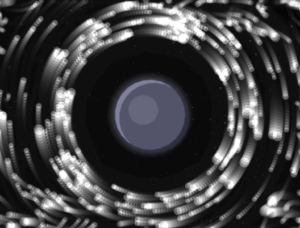
This sketch is a kaleidoscopic illustration of movers and attractors. My main inspiration is a combination of the picture above and a mix of effects I used in one of my motion graphics/VFX projects. I wanted to recreate a sample that captures both feelings at once.

Black White Kaleidoscope Background Abstract Animated


I started this sketch by placing circular attractors as shown in the image.

I wrote code that creates a circular arrangement of attractor points around a center position.

  for (let i = 0; i < numAttractors; i++) {
    let angle = (TWO_PI / numAttractors) * i;
    let x = centerX + cos(angle) * attractorRadius;
    let y = centerY + sin(angle) * attractorRadius;
    attractors.push(new Attractor(x, y, 20));
  }
}

This loop divides the circle into segments, each iteration multiplies by i to get the angle for that specific attractor. For x and y positions, I use polar-to-cartesian coordinate conversion as shown in the code.

Then I added movers and I applied the forces to the movers such that their position is affected by the attractors.

For this effect I take inspiration from this code.

So basically, the kaleidoscope effect happens because every single object gets drawn (numAttractors) times instead of just once. The trick is that before drawing each copy, the code rotates the entire coordinate system around the center of the canvas by increments of 60 degrees (since 360 deg ÷ 6 = 60 deg). It does this by moving the origin to the canvas center, rotating, then moving it back, and finally drawing the object at its actual position. But because the whole coordinate system has been rotated, what you actually see is the object appearing in six different spots arranged symmetrically around the center, like looking through a kaleidoscope. The cool part is that the physics simulation itself, only happens once for each object, but visually you see six reflections of everything. So when a mover orbits an attractor, all six of its mirror images orbit simultaneously.


For example, the number of movers in this sketch is 1, but it gets reflected 5 times


Here’s the code responsible for the kaliedoscope effect

for (let i = 0; i < symmetryFold; i++) {
  push();
  translate(width / 2, height / 2);      // move origin to center
  rotate((TWO_PI / symmetryFold) * i);   // rotate by incremental angle
  translate(-width / 2, -height / 2);    // move origin back
  circle(this.position.x, this.position.y, size);  // draw at original position
  pop();
}

I then made some really interesting changes here that make the pattern way more complex and controlled. I added this clever touch of four “corner attractors” placed at each corner of the canvas with higher mass , which act like gravitational anchors that influence the overall flow and create an effect of repulsion. I also added a visibility toggle (showAttractorsRepeller) so I can hide the attractors if I just want to see the trails. Speaking of trails, I changed the background to fade super slowly with background(0, 1) instead of clearing completely each frame, which creates these motion trails that build up over time. And finally, I made the movers wrap around the screen edges, if one goes off the right side it reappears on the left, which keeps the pattern continuous and prevents movers from escaping the canvas entirely.

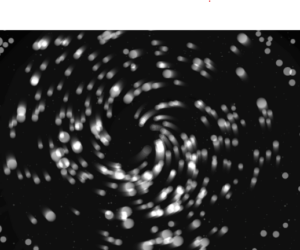
Then I hit the jackpot. By changing one of the corner attractors mass, I create really interesting kaleidoscopic effects as shown in the gif below
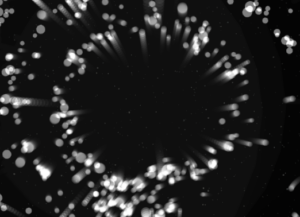
Then by playing with the number of attractors I achieve really compelling visual effects like this

Sketch

To get the most out of this sketch, please manipulate the parameters I indicated at the top of the code. There’s something so super satisfying with watching those patterns slowly get created.

Haris – Assignment 3

Concept

For this week’s assignment I wanted to recreate one of the most beautiful motions in nature, shooting stars. My idea was to have the stars fall from the top but be affected by the planets gravity which changes their direction. I also decided to add a path (line) behind the shooting starts which slowly filles up the screen and creates this beautiful drawing of all the paths the stars took. The users can also click on the screen to move the planets around and thus create completely unique paths every time.

Process

First order of business was to create the star filled background and to add planets. This is also when I added the click to add planets function so I wouldn’t have to deal with it later.

After this was done it was time to get started on adding shooting stars. I decided to also give them a trail so they would actually look nicer while “falling” and wouldn’t just be a ball passing by.

This is done by first saving the last position of the star as the first one in the array:

// save tail
this.tail.unshift(this.pos.copy());
if (this.tail.length > this.tailMax) this.tail.pop();

After which we draw the tail on the last position of the star with this:

draw() {
  // Tail
  for (let i = 0; i < this.tail.length - 1; i++) {
    let a = map(i, 0, this.tail.length - 1, 220, 0);
    let w = map(i, 0, this.tail.length - 1, 10, 1);
    stroke(255, 255, 255, a);
    strokeWeight(w);
    line(this.tail[i].x, this.tail[i].y, this.tail[i + 1].x, this.tail[i + 1].y);
  }

And now we have a tail following the star. I also added the “this.tail.pop()” to make sure the last position in the array (not the starts last position, technically the “first” ones) is deleted to keep the array shorter. And now we had shooting stars in the sketch.

But I felt like something was missing so I added the lines that are left behind the start so add a nice trail like drawing to the experience. To do this I decided to use createGraphics to keep it cleaner and more organized and to make sure the paths will always be visible. Using createGraphics also allowed the trail drawing to persist independently of the main animation loop, which clears each frame. This separation made it possible to accumulate motion into a lasting visual pattern.

pathLayer = createGraphics(width, height);
pathLayer.clear(); // transparent at the start

let prev = s.pos.copy();
s.update();
// draw path
pathLayer.stroke(255, 35);
pathLayer.strokeWeight(1.2);
pathLayer.line(prev.x, prev.y, s.pos.x, s.pos.y);
s.draw();

The prev stores where the star was before updating and the update moves the star. Then we use .line to create the path which when run every frame creates the path that we see in the final product.

Code Highlight

Even though my proudest part of code is the path layer one where I create a path behind the shooting stars, since I went over that part of the code I will explain my second proudest.

function solarWind(x, y) {
  let a = noise(x * 0.01, y * 0.01, frameCount * 0.01) * TWO_PI * 2;
  return p5.Vector.fromAngle(a).mult(WIND);
}

This, even though simple code I believe adds a nice touch to the overall feel and vibe of the sketch. Rather than applying random turbulence, I used Perlin noise to generate a smooth directional field across space. The noise value is converted into an angle and then into a vector, producing gentle, continuous variations in star motion. This force adds complexity without visual chaos, allowing trajectories to subtly diverge while still being primarily governed by planetary gravity.

Future Improvements

I am incredibly proud of how the final code turned out, but if I was to change anything in the future I would probably play with the color of the path that follows the shooting stars and or maybe it’s thickness. I would also explore the possibility of adding more planet options or maybe even planet star collision system.

week 3- walkers

This sketch went through more versions than I expected. What I’m submitting now is not where I started at all. The process was mostly about learning when to stop adding, when to remove, and when to trust small decisions like color and speed instead of big visual tricks.

Rather than drawing literal objects, I wanted to treat the canvas like a sky that slowly paints itself. The goal was to get something that feels alive and emotional through motion alone, without relying on obvious symbols.

Concept

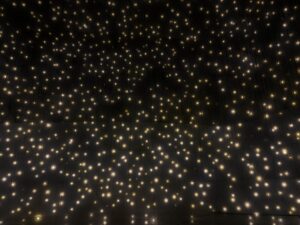
The sketch is made up of many moving walkers that act like brush strokes. Each one follows a smooth flow field, creating large swirling currents across the canvas. Small warm dots are scattered in the space. They are intentionally subtle and not meant to be read as stars directly. Instead, they influence the motion by creating gentle swirling forces around them.

Movement is more important than form here. The drawing builds up slowly over time as strokes overlap, fade, and accumulate. I wanted the sketch to feel closer to painting than animation.

Inspiration

The main inspiration was The Starry Night by Van Gogh, but specifically the energy of the sky, not the imagery. I was drawn to how the sky feels restless, emotional, and alive. I wanted to translate that feeling into motion and color, without copying shapes or composition directly.

I was also thinking about painterly mark-making and how repetition and gesture can build texture and depth.

Milestones and process

This project was very much a trial-and-error process, and each milestone came from something not working visually.

Milestone 1: Realizing movement alone wasn’t enough
The first versions technically worked but looked bad. The motion was chaotic and noisy, and everything competed for attention. Even though there was a lot happening, nothing felt intentional. This was when I realized that having a system is not the same as having a composition.

Milestone 2: Struggling hard with color
Color was the longest and most frustrating part. Early versions were way too neon and saturated. They felt more like a screensaver than a painting. I kept tweaking values and nothing clicked until I made a decision to restrict the palette almost entirely to deep blues. Warm tones were allowed only in very small amounts. That shift changed everything. Once the palette was limited, the sketch finally started to feel grounded and cohesive.

Milestone 3: Changing how forces work
At first, I used direct attraction, which caused clustering and visual clutter. Everything kept collapsing into points. Switching to a tangential force that makes walkers swirl around dots instead of moving toward them was a turning point. This single change transformed the sketch from messy to controlled and gave the motion a calm, circular rhythm.

Milestone 4: Removing visual elements
This was a big one. I tried adding glowing stars, silhouettes, and other focal points, but they kept overpowering the motion. Removing them made the piece stronger. Each time I deleted something, the sketch improved. This taught me that generative work benefits a lot from editing and restraint.

Milestone 5: Slowing everything down
The final milestone was reducing speed and force. Earlier versions moved too fast and felt anxious. Slowing the walkers and letting the trails accumulate over time made the sketch feel more meditative and painterly. This is when it stopped feeling like an experiment and started feeling like an artwork.

Code highlight

This section of the code was crucial to reaching the final behavior. Instead of pulling walkers inward, it pushes them sideways so they orbit and swirl:

const tangent = createVector(-dir.y, dir.x);
const strength = 0.45 * (d.r / dist);
f.add(tangent.mult(strength));

That small change completely reshaped the motion and helped the sketch feel intentional rather than chaotic.

Coded embedded 

Reflection and future work

This project taught me how important restraint is in generative art. The sketch became stronger every time I simplified it. Color, speed, and force mattered far more than adding new visual elements.

In the future, I want to explore:

  • Using fewer walkers to increase negative space

  • Creating print-focused versions with stronger contrast

  • Letting the flow field change slowly over time to create different emotional phases

So far honestly I am so so proud of myself for creating this and I loved it